









Sign up today and see the results for yourself!
Want to speed up your verification process?
Share a screenshot of your ad revenue from the past 3 months.

MonetizeMore is publishing a series of posts about how to report problematic ads. We aim to help our publishers display the best ads for their websites in order to earn more. Be sure to follow this series and share it with your friends! And don’t forget to subscribe to the MonetizeMore Newsletter.
While mobile browsers do not easily allow you to check and copy ad codes and screencap the faulty ads, there is a way to get the most details to report by using an Android Emulator. You can try https://appetize.io. Just pick the particular device model you wish to use.
Here are the steps involved in reporting problematic ads spotted on an Android browser:
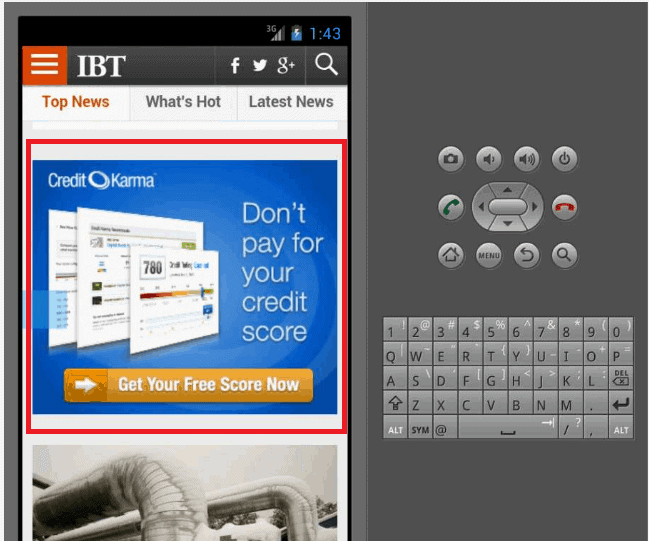
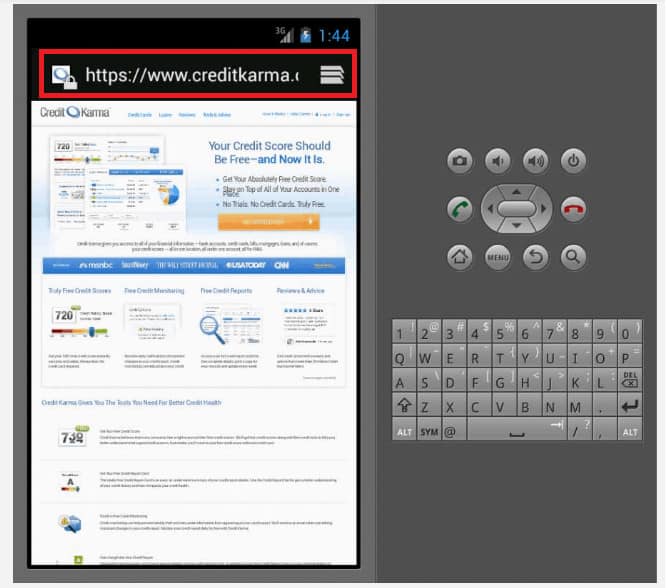
http://support.monetizemore.com/customer/portal/emails/new or if you’re reporting a problematic ad for a site you do not own, email the details to the website’s contact email.
If you would like to try an alternative (and easier way) of reporting problem ads on mobile devices, check out: How to Report Problematic Ads on Mobile Phones (using a JS Bookmarklet on Google Chrome)
MonetizeMore helps publishers monetize their full ad inventory – from setup to optimization, to making sure all ads are relevant and working properly. If you would like to learn how MonetizeMore can quickly block or fix any of your problematic ads, contact us here.
Feel FREE to sign-up for AdExchange – the best Adsense alternative.
Related Reads:

Marketing MBA and Global Marketing Manager at MonetizeMore.

10X your ad revenue with our award-winning solutions.