This post was most recently updated on November 6th, 2020
Here at MonetizeMore, we’re committed to helping you keep your site user-friendly by displaying only safe, relevant, and effective ads. However, we understand that some of our publishers may be getting bad ads from third-party demand partners, and would like to be more proactive in resolving these.
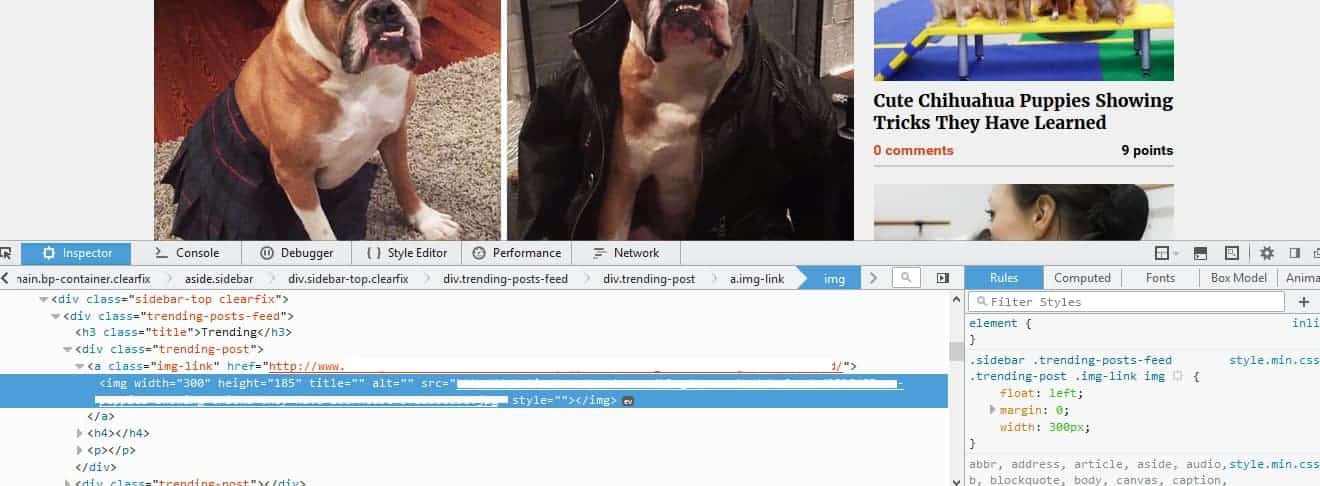
As a guide, we’re listing down steps on how to capture bad ads for each browser type. The key step is to be able to identify the source of an ad, so you can report it to us. From there we can start blocking the ad in question.
Send the HAR file over with a description of the ad, ad size, any URL calls they see that may be related to the ad.
C. Specifically for the Ad in Question
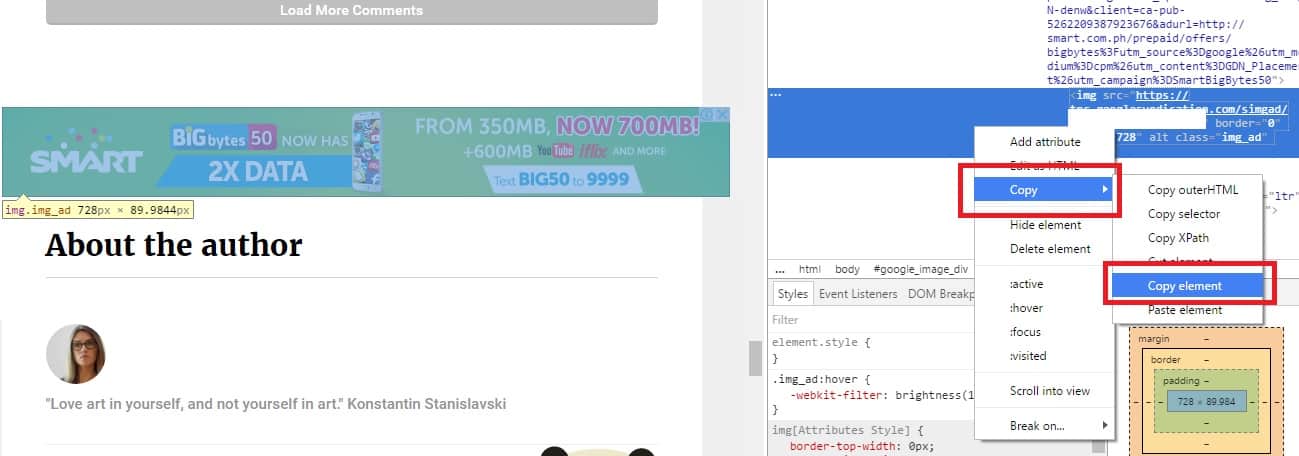
Right-click on the ad and select “Inspect element with firebug”
Expand all the boxes with the “+” signs
CTRL-A to select all
CTRL-C to copy and CTRL-V to paste into a text file
Send the text file over with a description of the ad, ad size, any URL calls they see that may be related to the ad.
III. Using Internet Explorer 11
A. Enable Developer Tool and Capture Calls
Hit F12 to enable the developer tool
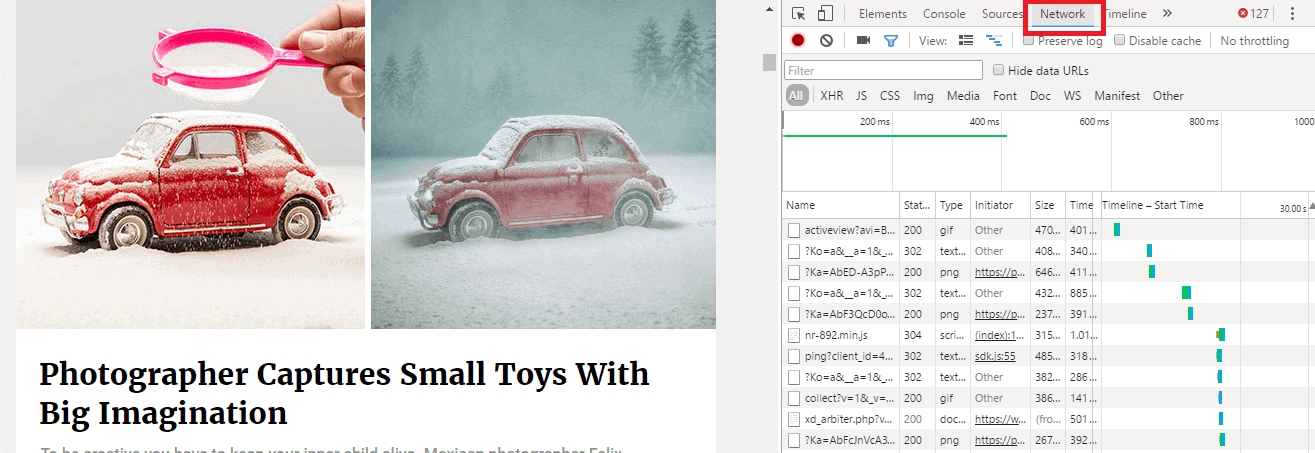
Click on Network tab
Click on the Green arrow to enable call logging
Refresh the page until the ad is encountered (the Tool will not display the call that was made prior to it being enabled)
Click on the “disc” icon – mouse over the icon and you will see “Export captured traffic”
You will be prompted to save a “NetworkData.xml” file.
Send the XML file over with a description of the ad, ad size, any URL calls they see that may be related to the ad.
Conclusion
If you have any questions about capturing and blocking bad ads? Do you want help optimizing your ad revenue? MonetizeMore is Google Certified Publisher Partner that’s ready to help take your ad revenue to the next level. Sign up to get started today!