





Sign up today and see the results for yourself!
Want to speed up your verification process?
Share a screenshot of your ad revenue from the past 3 months.
In order for the Placement ID’s to work with Size Mapping, you’ll need to configure the Placement IDs according to Size Map.
Step 1: Open the relevant header bidding configuration in PubGuru
Step 2: If the bidder provides multi-sized Placement IDs, request at least 1 Placement ID for every size map.
For example, AdUnit1 has 3 Size Maps:
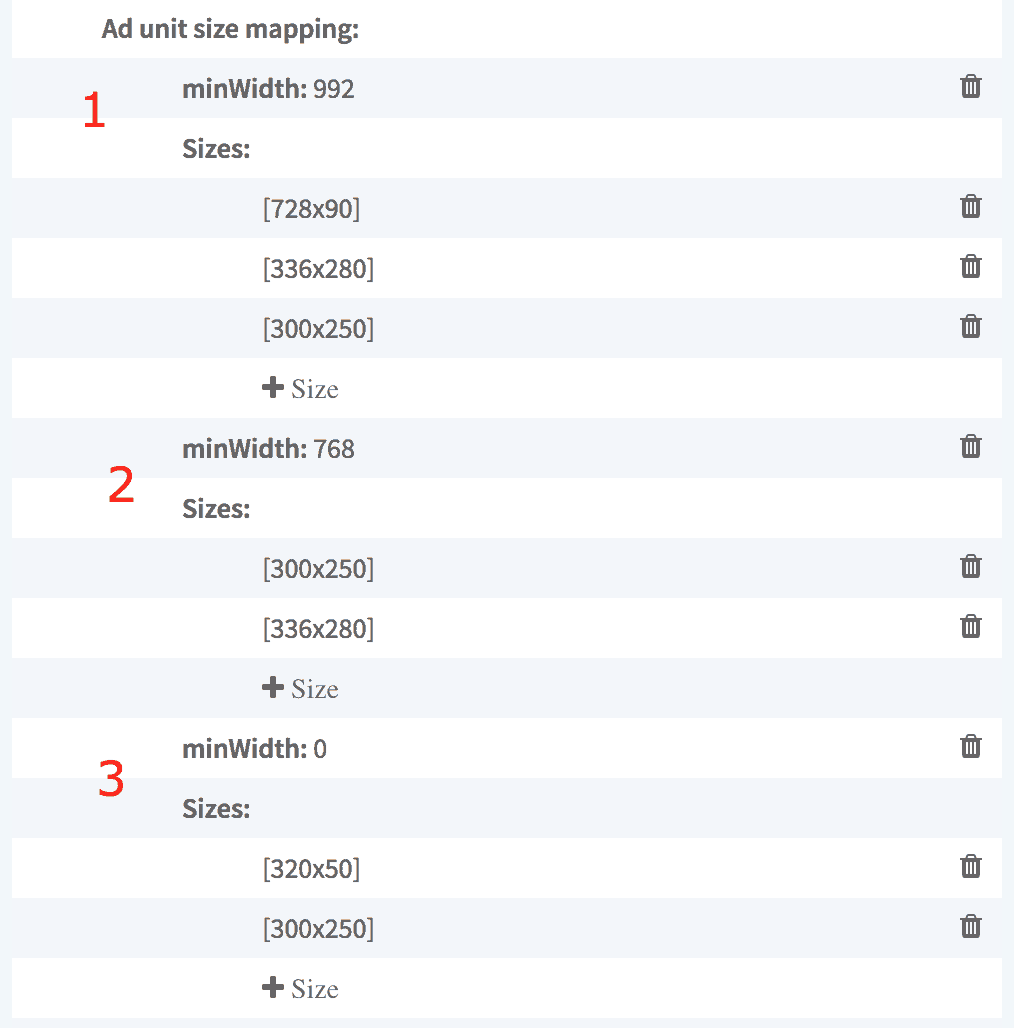
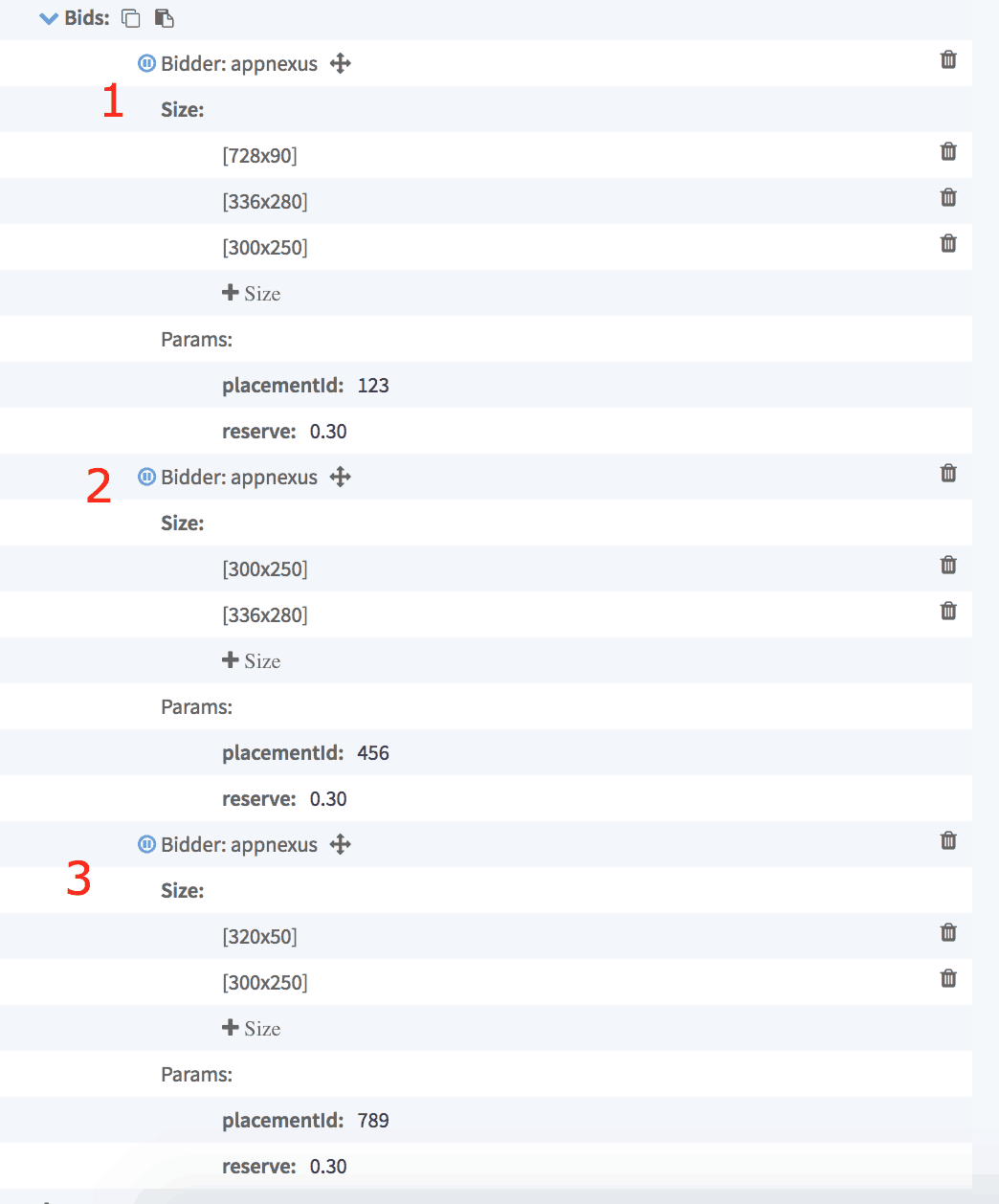
Request a multi-sized bidder to provide you with 3 Placement ID’s for this ad unit alone. Configure each Placement ID with the Bidder sizes that corresponds to the Size Map.
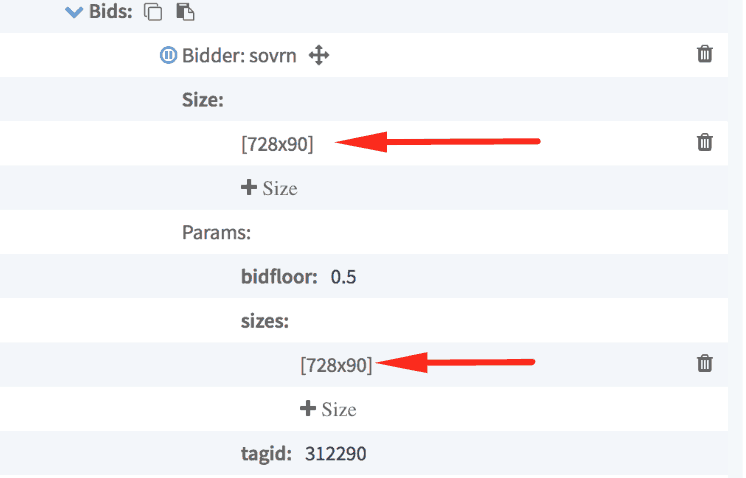
Step 3: If size is one of the parameters, in which case you will most likely get single sized Placement IDs, relevant size/s should be configured
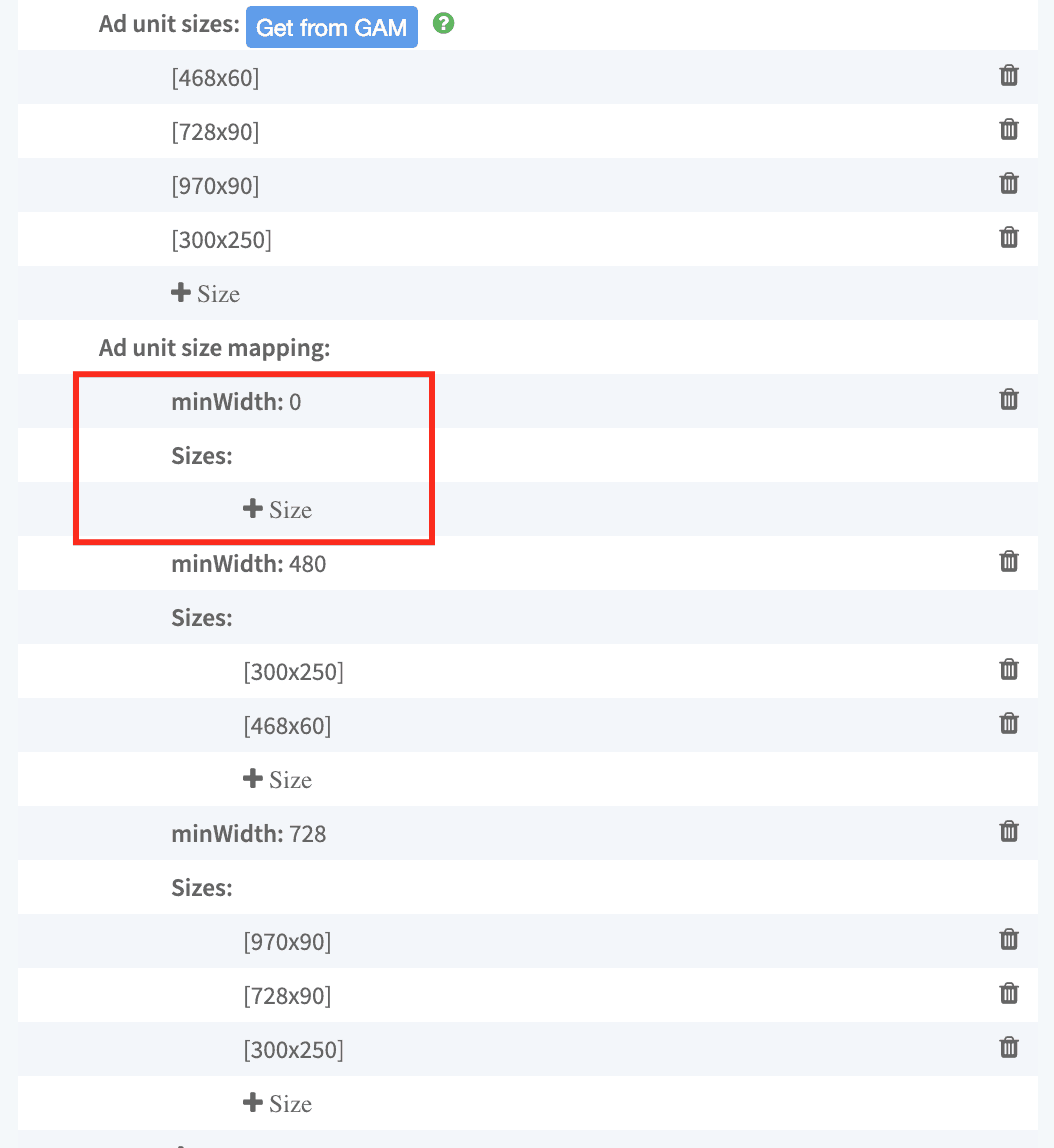
Step 4: If an ad unit will run only on a specific device, still add other devices’ minWidths, but don’t add sizes to it.
Example 1:
A mobile unit will have the following size mapping setup:
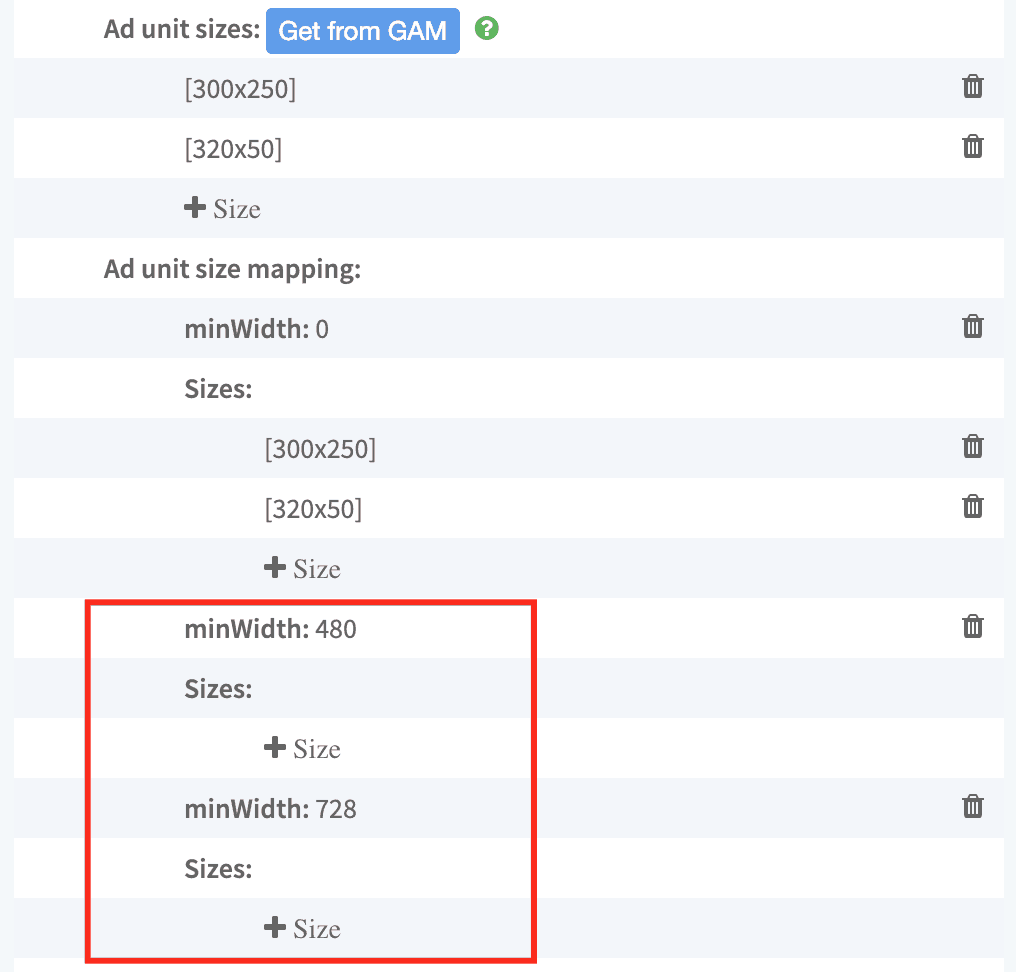
Example 2:
A desktop/tablet unit will have the following size mapping setup:
Step 5: Save and publish
Step 6: Re-run PubGuru Ad Inspector (PGAI) after 10-15 mins.
Need more help? Send us an email at [email protected] or log in to PubGuru App and use the Chat widget for immediate support.
Let our AdOps Experts do the hard work. Sign up today and unlock your revenue potential.