





Sign up today and see the results for yourself!
Want to speed up your verification process?
Share a screenshot of your ad revenue from the past 3 months.
Verify if the ad size mentioned (size the bidder is responding with) in the error is valid or not. Valid means it should be part of the configured sizes for that ad unit.

If size is INVALID:
The bidder is responding with a bid for a size that’s not configured for that ad unit.
If size is VALID:
Step 1: Log into Ad Manager > Inventory > Ad Units
Step 2: Check the ad unit settings to make sure all the relevant sizes are configured.
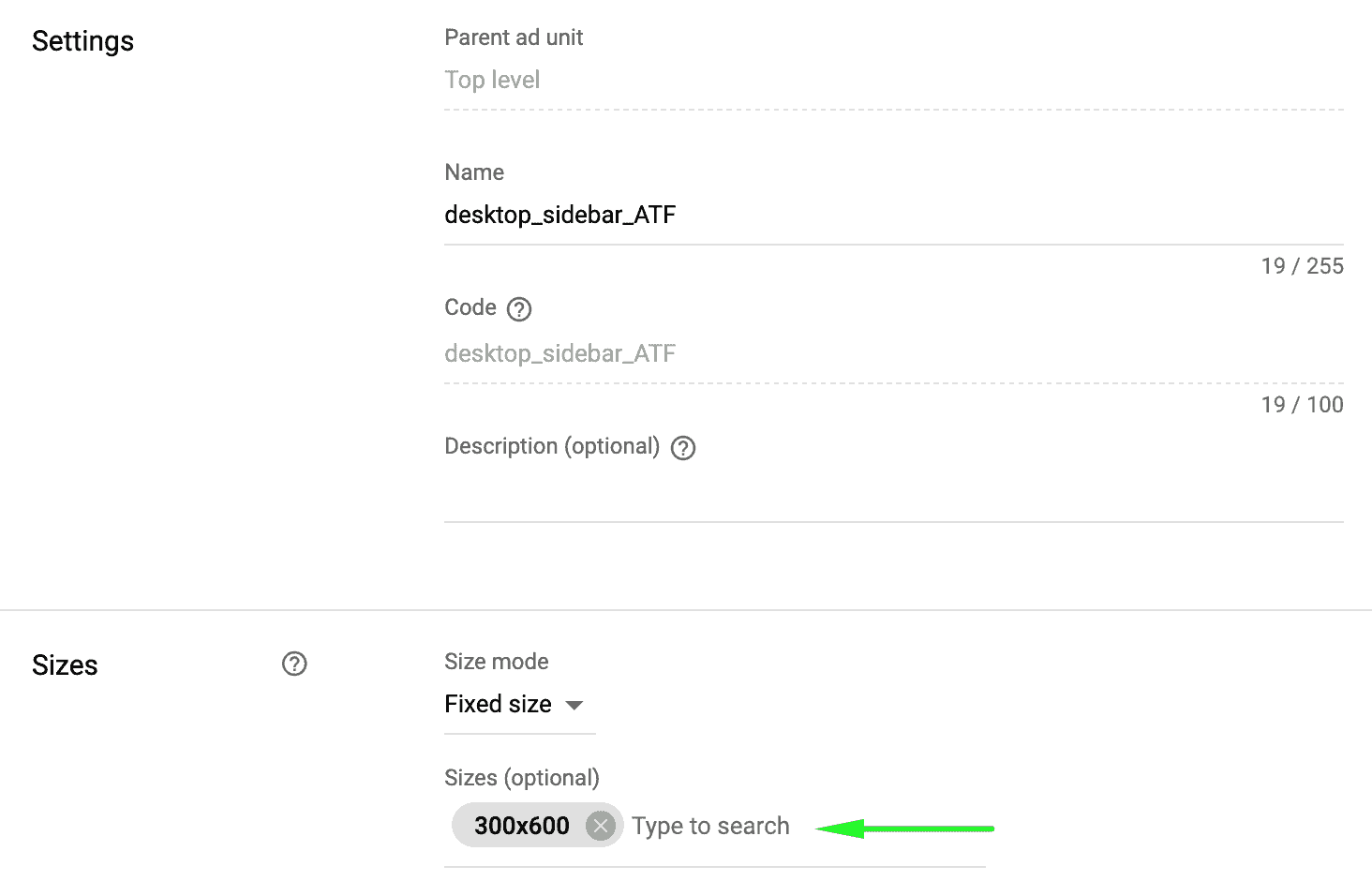
Step 3: Remove or add sizes as necessary
Step 4: Log into tools.monetizemore.com > PubGuru Header Bidding > Configurations
Step 5: Open the relevant configuration and check the ad unit sizes if correct.
Step 6: Click ‘Get from DFP’ and it should automatically pull the sizes per DFP settings.
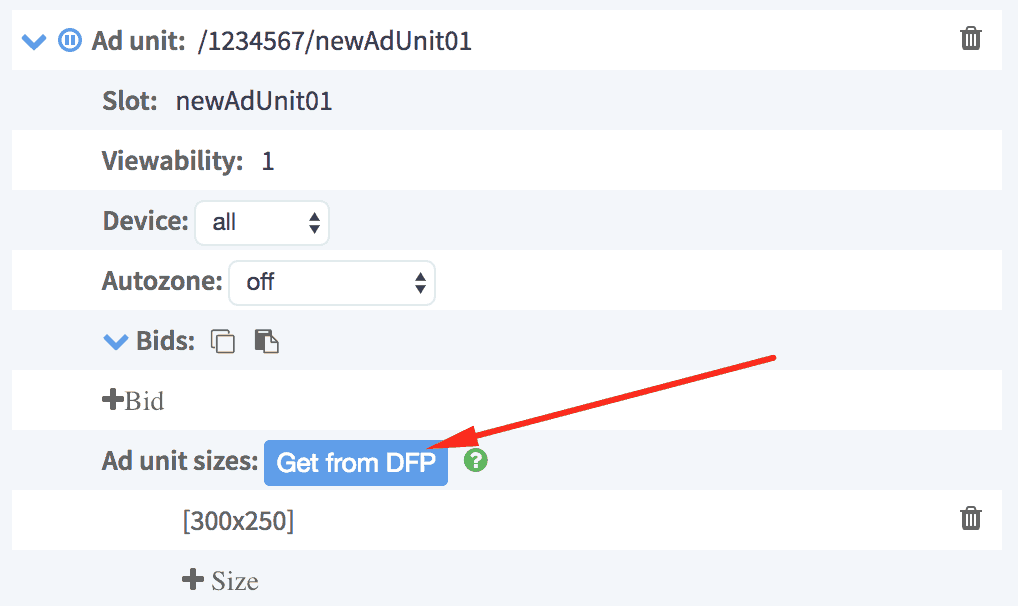
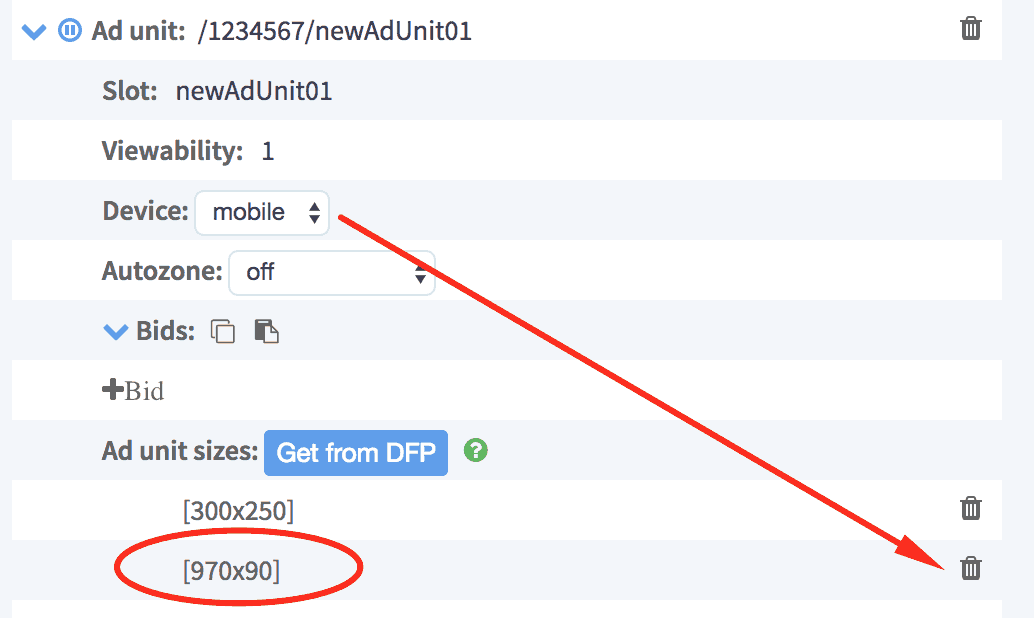
Step 7: Manually remove the sizes that should not be part of the settings for that ad unit. This is particularly applicable when you run a responsive setup where you need to separate the ad sizes between devices for an ad unit.
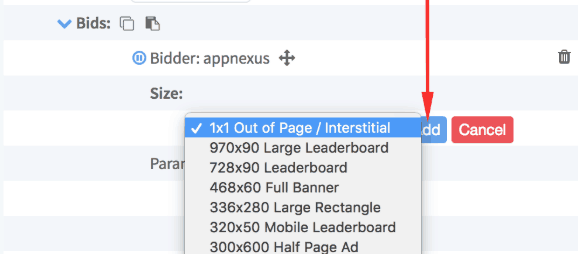
Step 8: If you have Size Mapping enabled, add in the bidder-level size.
Need more help? Send us an email at support@monetizemore.com or log in to PubGuru App and use the Chat widget for immediate support.
Let our AdOps Experts do the hard work. Sign up today and unlock your revenue potential.